
 My trusty old gigantic [Sony Vaio][vaio] is about 4 years old. It served me well and still works but it’s about to become my main development machine for the next couple of months and I can’t afford to have it die on me during that time.
It was time to get something as gigantic and more up-to-date in terms of technology.
I use VMware on my main desktop to keep multiple OS setups that match typical configurations of my customer’s machines.
This allows me to test my software before deployment and make sure everything works as expected.
It saved me many times from strange bugs and I would consider these final tests to be a mandatory step before deployment.
My old trusty vaio would be hard pressed to run any of these without slowing down to a crawl.
I looked at some possible replacements. Initially I checked Lenovo’s offerings but they don’t seem to offer anything in large screen size ([WUXGA][WUXGA] 1920×1200) (Note, actually, [they have][lenovo], but not really for me).
Dito for Dell, not counting their humongous [XPS M1730][XPS] luggable gaming machine that was wayyy over the top as a work computer, not to mention probably heavier than its volume in pure gold.
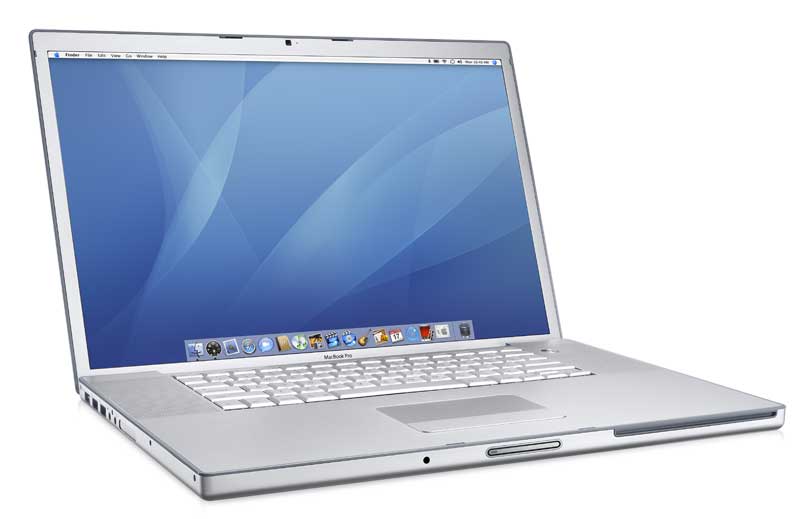
On a hint from a friend I checked out [Apple’s online store][store] and saw they had a nice Macbook Pro configuration. I went to check it out in the retail store close to my office and they had that exact specification in stock, so, in what must have been the highest rated expense/time-to-think ratio of any decision I ever took, well, I bought it…
The spec, some bragging rights:
* Macbook Pro 17″
* Core Duo T9500 2.6GHz processor
* nVidia 8600M GT 512MB graphics card
* 200GB 7200rpm drive
* Kingston 4GB DDR2 667MHz RAM
* Hi Resolution 17″ 1920×1200 glossy screen
It’s a *very* nice machine, Apple knows how to make nice hardware, there is no question there.
OSX has some cool features, some of them still a bit foreign to me and some minor annoyances are creeping up, like Thunderbird’s not picking up my system date and time settings and displaying the date in the wrong format (a [pet peeve][dates] of me), probably not Apple’s fault but annoying nonetheless.
So far so good and while I don’t mind using OSX for my browsing, email and creative stuff, that machine is meant to be running Windows Server 2008 x64 as a development platform.
###Why Windows Server 2008 x64?###
Well, it has some excellent features, a smaller footprint than Vista, all the aero eye candy, is apparently [noticeably faster than Vista][faster] and has none of the nagging security prompt (you are considered administrator though, so keeping safe is entirely up to you).
The 64 bit version can also address the full 4GB of RAM without limitation and all server features are optionally installable.
By default, the installation is actually pretty minimal and you have to set services and options to get Windows configured as a proper workstation. It is after all, meant to be a server.
Oh, I almost forgot that there is also support for [HyperV][hyperv], although you must make sure you download the right version (if you list all available downloads in your MSDN subscription, you’ll see some that are explicitly without that technology).
###Installing Windows Server 2008 x64 is remarkably easy.###
* Get your hands on the ISO from your MSDN subscription or an install DVD from somewhere else (like a MS event, or even as a [free 240 days download from Microsoft][trial]).
* You’ll need to repackage the ISO as it won’t work properly (something to do with [non-standard file naming options][badiso]).
It’s fairly easy if you follow the instructions from [Jowie’s website][cdrepack] _([cached version][cdrepackcached])_: you can get the [ImgBurn][imgburn] software for free as well, which is a good find in itself. It should’t take more than 30 minutes to repackage the DVD.
* In OSX, go to Applications > Utilities > Boot camp and follow the instructions on screen.
You will be able to resize the default partition by just moving the slider. I left 60GB for OSX and allocated the rest to Windows. The good thing is that OSX can read Windows partitions, so you can always store data there. Windows however, can’t read the [HFS+][hfs] mac file system, although there are some third-party tools that can do it [[1]][hfs1] [[2]][hfs2] [[3]][hfs3].
* Insert your repackaged DVD and Bootcamp will have rebooted the machine.
After a few minutes of blank screen (and no HDD activity light to let you know something is happening), windows setup launches.
* You will be then prompted with the choice of partition to install to.
Select the one named BOOTCAMP, then click the _advanced options_ button and click _format_.
From there one, windows will install everything, then reboot, then carry on installing, then reboot one last time.
* Now, insert your _OSX recovery CD 1_. It should automatically launch the driver installation.
Once done, you’ll reboot to a nice, full-resolution windows prompt.
* All drivers will have been installed correctly except the one for Bluetooth. To easily solve that issue, just go to [Spencer Harbar’s website][harbar] and read [how to install the Bluetooth drivers][bluetooth]. Takes 5 minutes tops.
###The final touches###
A few notes to quickly get things running as expected.
* Get the most of your configuration by following the [list of tweaks from Vijayshinva Karnure][tweaks1] from Microsoft India.
* There are [more tweaks][tweaks2], and [even more tweaks][tweaks3] available as well (don’t forget to enable [Superfetch][superfetch]).
* Microsoft has a whole KB entry on [enabling user experience][tweaks4].
* In the Control Panel > System > Advanced System Settings > Advanced > Settings > Advanced > Processor scheduling, set to _Programs_ instead of _Background services_.
* Activate your copy of Windows using Control Panel > System.
I was getting an error code 0x8007232B _DNS name does not exist_ error. To force activation, just click on the _Change Product Key_ button and re-enter the same key you used during install.
Windows will activate straight away.
* When booting your Macbook, press the _Option_ key and you will be presented a list of boot choices.
* You can check on [Apple’s Bootcamp webpage][bootcamp] other information about how to use the track pad, keyboard layouts etc,
###References###
*
*
*
*
*
[store]: http://store.apple.com/hk/configure/MB166ZP/A?mco=NzUzNDY0
[XPS]: http://www.dell.com/content/products/productdetails.aspx/xpsnb_m1730?c=us&l=en&s=dhs
[dates]: http://blog.nkadesign.com/2007/people-mind-your-dates-plz/
[vmware]: http://vmware.com/products/fusion/
[hyperv]: http://en.wikipedia.org/wiki/Hyperv
[cdrepack]: http://jowie.com/blog/post/2008/02/24/Select-CD-ROM-Boot-Type-prompt-while-trying-to-boot-from-Vista-x64-DVD-burnt-from-iso-file.aspx
[cdrepackcached]: /wp-content/uploads/2008/08/Select-CD-ROM-Boot-Type-prompt-while-trying-to-boot-from-Vista-x64-DVD-burnt-from-iso-file.aspx.htm
[imgburn]: http://www.imgburn.com/
[harbar]: http://www.harbar.net/Default.aspx
[bluetooth]: http://www.harbar.net/archive/2008/06/13/Enabling-Bluetooth-on-MacBook-Pro-and-Windows-Server-2008-x64.aspx
[vaio]: http://etc.nkadesign.com/Linux/SonyVaio
[faster]: http://exo-blog.blogspot.com/2008/03/windows-2008-vista-done-right.html
[superfetch]: http://www.2008server.org/?q=SuperFetch
[tweaks1]: http://blogs.msdn.com/vijaysk/archive/2008/02/11/using-windows-server-2008-as-a-super-desktop-os.aspx
[tweaks2]: http://www.win2008workstation.com/wordpress/
[tweaks3]: http://weblogs.asp.net/israelio/archive/2008/02/21/windows-server-2008-as-workstation.aspx
[tweaks4]: http://support.microsoft.com/kb/947036
[badiso]: http://support.microsoft.com/kb/931708
[hfs]: http://en.wikipedia.org/wiki/HFS_Plus
[hfs1]: http://www.ufsexplorer.com/
[hfs2]: http://www.macdisk.com/prospen.php3
[hfs3]: http://www.acutesystems.com/
[trial]: www.microsoft.com/windowsserver2008
[WUXGA]: http://en.wikipedia.org/wiki/WUXGA
[bootcamp]: http://www.apple.com/support/bootcamp/
[lenovo]: http://www.tomshardware.com/news/Lenovo-W700-wacom-17-thinkpad,6117.html
Comments
Very nice article. How is the overall performance of 2008 on that system?
Hi Guti, so far not too bad. The only drawback I’ve found at the moment is that booting time could do with some improvements and that if the HyperV role is selected you can’t have sleep or hibernate any longer. I hope to find a solution to the sleep issue, I don;t like to have to either leave the laptop on or shut it down when I’m not using it. The other thing that works pretty well is using VMware Fusion. It’s now in RC and can be downloaded for free. I am amazed that it actually works so well from OSX without messing with the original setup. So I can still boot natively using bootcamp or launch W2k8 from VMWare without problem.
Jowie’s website is down. I was wondering if you could tell me the steps needed to change the file. I have the iso for Windows Server 2008 32 bit if that matters. It is going on a std. macbook.
It seems that Jowie’s website has changed its URL format but the posts are still there. Edited 15OCT2008: I have added a cached version of the page in case this happens again.
hi, i am a OSX user. First, I would like to thank you for the instructions. They are very helpful. I have a question on booting OSX. It seems like the default boot is windows server 2008 and not OSX, and it would be painful for me to hold option every single time. thank you for reading
Use the Bootcamp control Panel in Windows to define the default booting operating system.
hi there. i just installed windows 2008 64 bit on my 15″ macbook pro. i cannot get my wireless to work, its not picking up the drivers from the boot camp disk. i downloaded the latest bootcamp with 64bit driver support but still not picking up the wirless driver. bluettoth seems to have installed ok. any ideas please, im lost… thanks guys.
@Bilal: the wireless adapter in my MacBookPro is a “Broadcom 802.11n Network Adapter”. Make sure that the driver you got from Apple is for this chip only. If a driver is already installed and not working, try just deleting it from the device manager then re-install it. You can also try to force the installation under the device manager by forcing an update and navigating to the actual drivers on your CD or the ones you downloaded. Another thing, if there is no support yet for your particular chipset from Apple, try to get one from the chipset manufacturer’s website or from another vendor like Dell or HP which may use the exact same chip.
thanks Renaud, i will try that tonight. in my device manager it just says unknown device as it was unable to find the driver on the bootcamp disk. i will try downloading the driver from another site and try that. will let you know how it goes.
hello. seems like a really good idea to put WS2K8 onto my MBP. I’ve been reading http://www.win2008workstation.com and it all looks like it’s gonna be good. Would just like to ask if you have had any issues with the 2.1 bootcamp drivers? thanks, rich
@Williss: I’m using the 2.1 Boot Camp drivers and I have not had much trouble so far. The main kink was with Bluetooth but I solved it using the references in the article. One thing to note: not all MBP use the same hardware so things that work or don’t work for me may well turn out a different way for you. I’d say just try it: create a separate partition that you can always delete if things don’t work out as expected. At worse, it was a waste of your time. I’m very happy with Windows Server 2008. It’s really Vista done right and on my Macbook it’s really pleasant and fast to use. Now you may temper this with my thoughts on the Macbook in the follow-up article I wrote a few weeks ago…
I’ve tried to make sense of the instructions and I ended up wasting two DVD-Rs. I’m not sure what I’m doing wrong, are there any other articles describing how I am to make the ISO so that bootcamp will recognize it? Thanks
Or better yet… could anyone link me to or help me find a ready-made ISO that bootcamp would recognize?
@Chris: sorry Chris but I haven’t got anything better than the instructions on jowie’s website. Did you use ImgBurn? If not, try doing it again on a R/W using ImgBurn so you don’t waste any more discs.
Yeah, I tried to follow the instructions as best as i could, but I had a hard time seeing how one step led into the next and how everything came together in the end. An RW would definitely be a good idea.
This is encouraging and discouraging at the same time. I have a MBP very similar to yours in terms of specs but I have had a heck of a time getting things to work. Even after hours of tinkering, I still have three devices that simply won’t work and I have no idea what they are. I have downloaded about every Bootcamp driver package I can find and there is no solution. I read online and everyone with Vista x64 seems to be fine but I don’t want Vista. I wish there was something I can do. Do you have any ideas?
Hi, And thanks for grat guide lines. I’ve been running dual boot with Windows Server 2008 for a while now on my MacBook Pro 17″. Initially I tried to install R2 RC1 but it refused to run bootcamp 2.1 so I stayed with WS 2k8. Now I’m thinking of upgrading to R2 and I’ve also upgraded to Snow Leopard so I have Bootcamp 3.0. Anyone tried to install Bootcamp 3.0 under Windows Server 2008 R2 RTM? I do not dare install R2 before I know I’m able to scuccessfully install Bootcamp 3.0 from within R2.
This might be slightly offtopic, but: You can change the way OS X displays date/time in System Preferences -> Language & Text -> Formats
Unquestionably the top very good reasons that will often corrupt a real hard drive will be disease attack, file system corruption, products hassles yet others. Your own software concoction proposals one particular go of features exactly like holding multiple submit types of and so systems pertaining to recuperating exterior products.
I have nothing called Boot Camp on the MacbookPro I purchased. I have Boot Camp Assistant. Is it the same thing? It doesn’t permit anything other than Windows 7 or later to be installed.
These tips actually came in handly as I rebuilt an old machine lying around the office last week. Thanks.
I seriously love your blog.. Excellent colors & theme. Did you create this site yourself? Please reply back as I’m attempting to create my very own site and would like to learn where you got this from or just what the theme is named. Cheers!
Comments are closed.